

The data grid
Open any table from the sidebar to load it into the grid.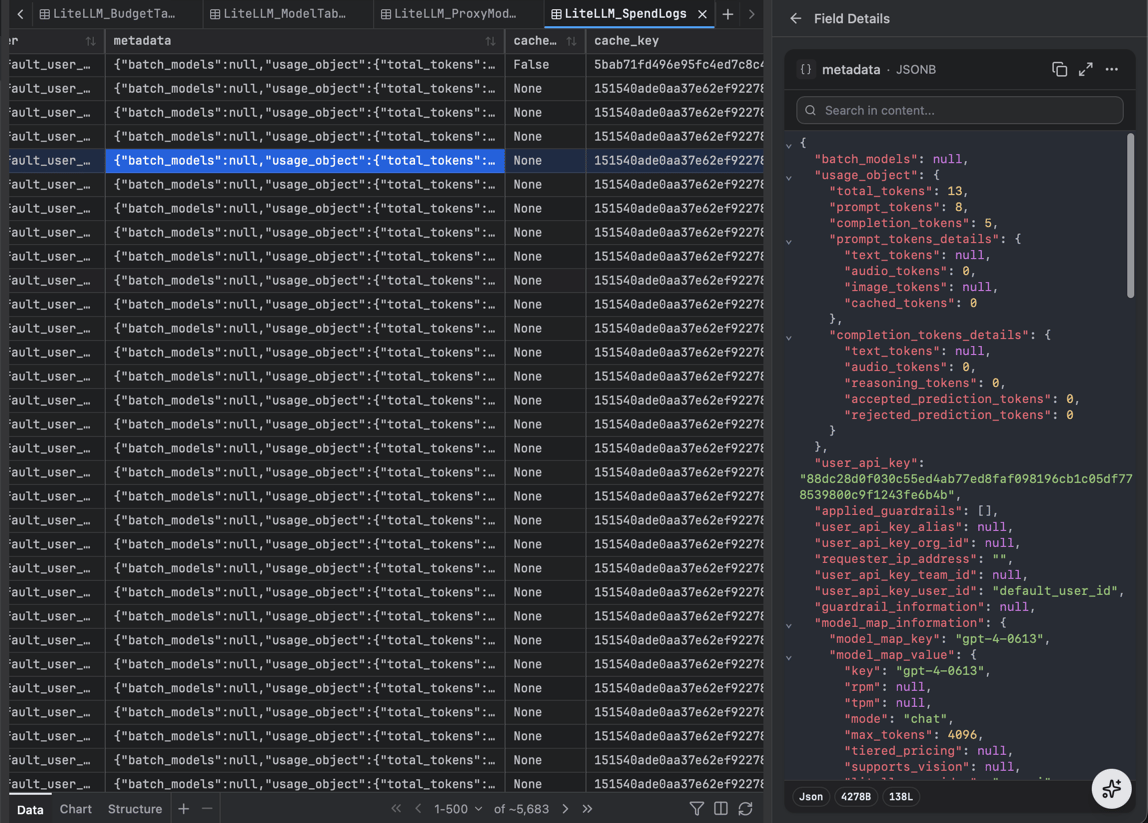
- Sort - click a column header.
- Navigate - arrow keys move the active cell; the inspector follows the selection.
- Inspect - click a cell to see its full value in the inspector.
Cell detail panel
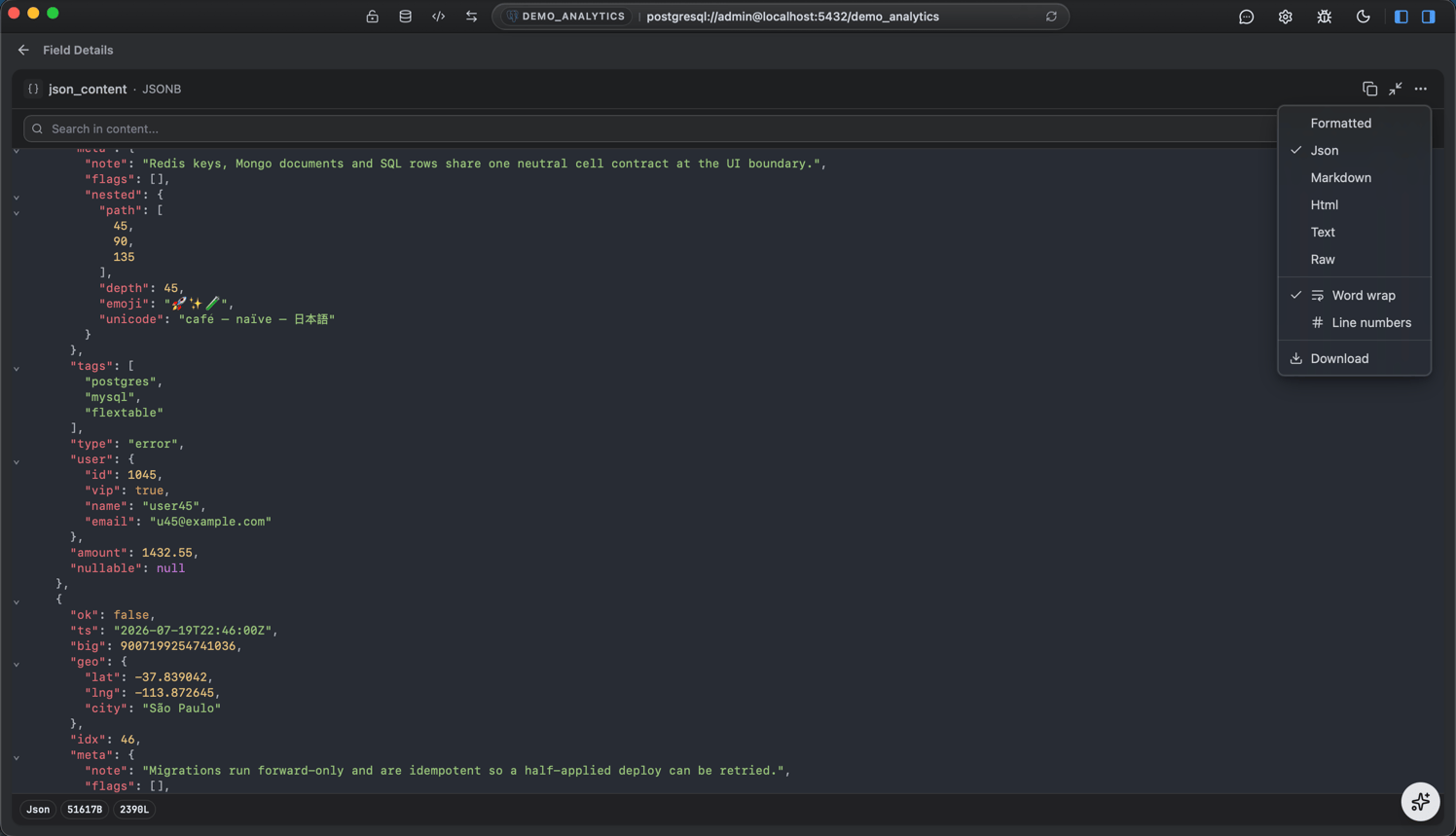
Click a cell to open its full value in the inspector, a rich value viewer rather than a plain text box:- Choose the display format - render the value as Formatted, JSON, Markdown, HTML, plain text, or Raw. Markdown and HTML get a live preview; the code formats get syntax highlighting, in-panel search (Ctrl+F), and folding.
- Fullscreen - maximize the panel to read or edit a large value comfortably.
- Copy or download the value.
Filter
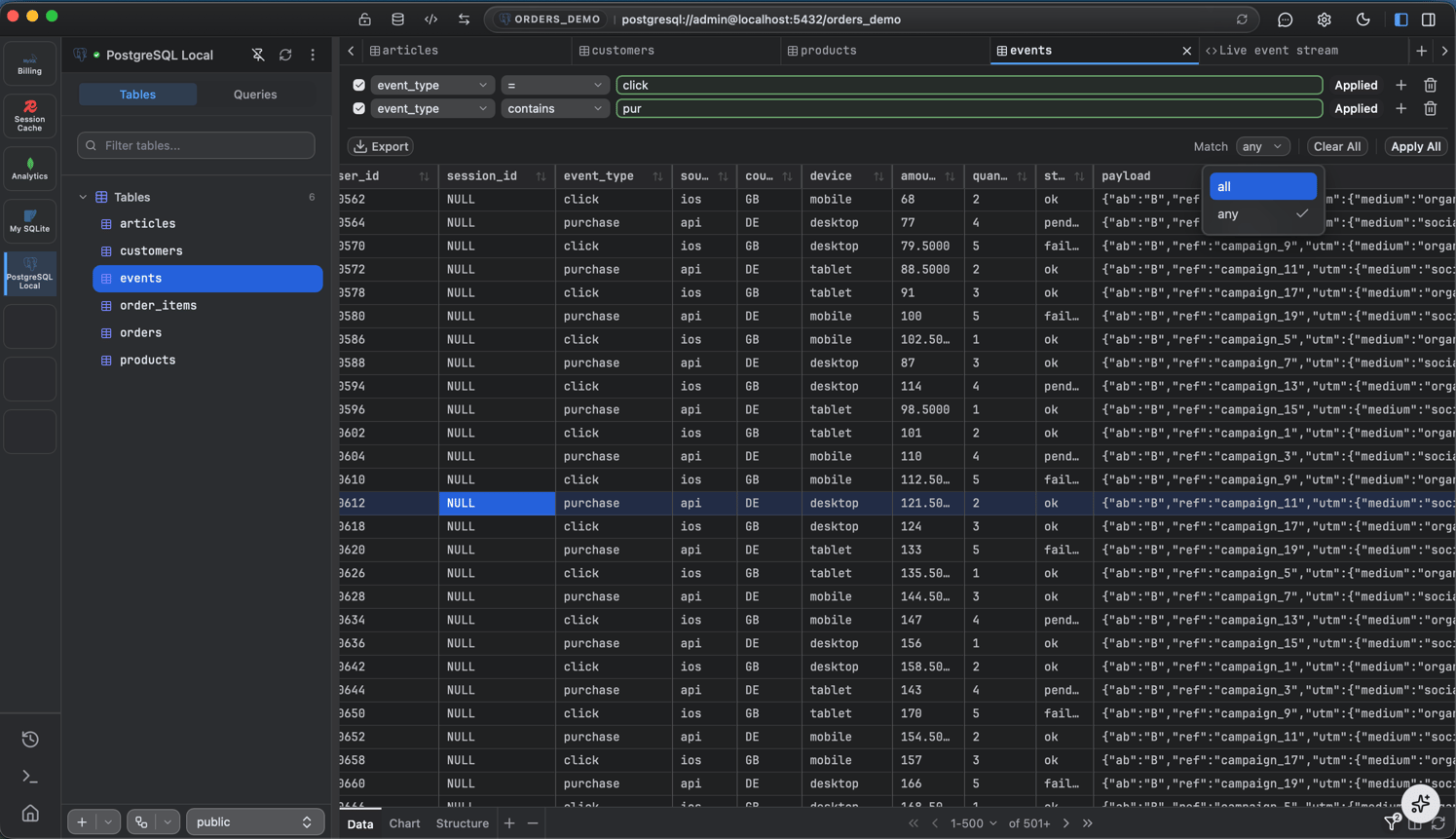
Open the filter bar and add conditions (=, contains, in, is null, and more); combine them with all or any. Text search is case-insensitive by default.
Edit a row
Double-click a cell to edit inline. FlexTable picks the right editor for the column type: a date picker, number field, text box, or JSON editor.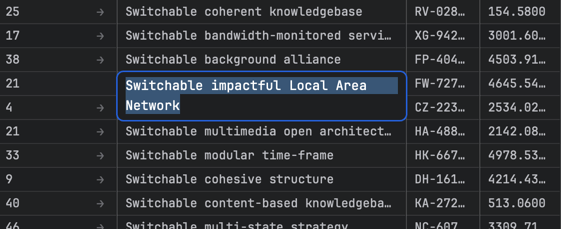
Structure tab
Switch a table to the Structure tab to see its columns, indexes, foreign keys, and triggers, where the engine supports them. See Schema and ER diagram for more.Next: Query editor
Write and run queries with schema-aware autocomplete.