> ## Documentation Index
> Fetch the complete documentation index at: https://docs.flextable.dev/llms.txt
> Use this file to discover all available pages before exploring further.
# Quickstart
> Connect to a database and run your first query in a few minutes.
This takes you from a fresh install to your first query. It assumes FlexTable is [installed](/installation).
Click **+ New Connection** at the top of the sidebar, choose a database type (for example **PostgreSQL**), and fill in the host, port, database, username, and password. For **SQLite**, just pick the `.db` file.
Click **Test** to verify, then **Save**.
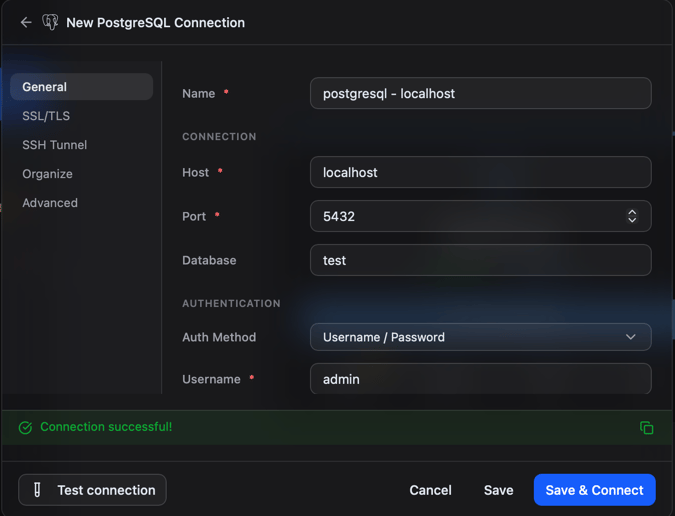 A green **Connected** badge means the credentials and network are good. Fix any issue here before you save. Full per-engine details are in [Connect to a database](/connecting).
In the sidebar, expand your connection, expand a database, and click a **table**. It opens as a tab and rows load into the grid.
A green **Connected** badge means the credentials and network are good. Fix any issue here before you save. Full per-engine details are in [Connect to a database](/connecting).
In the sidebar, expand your connection, expand a database, and click a **table**. It opens as a tab and rows load into the grid.
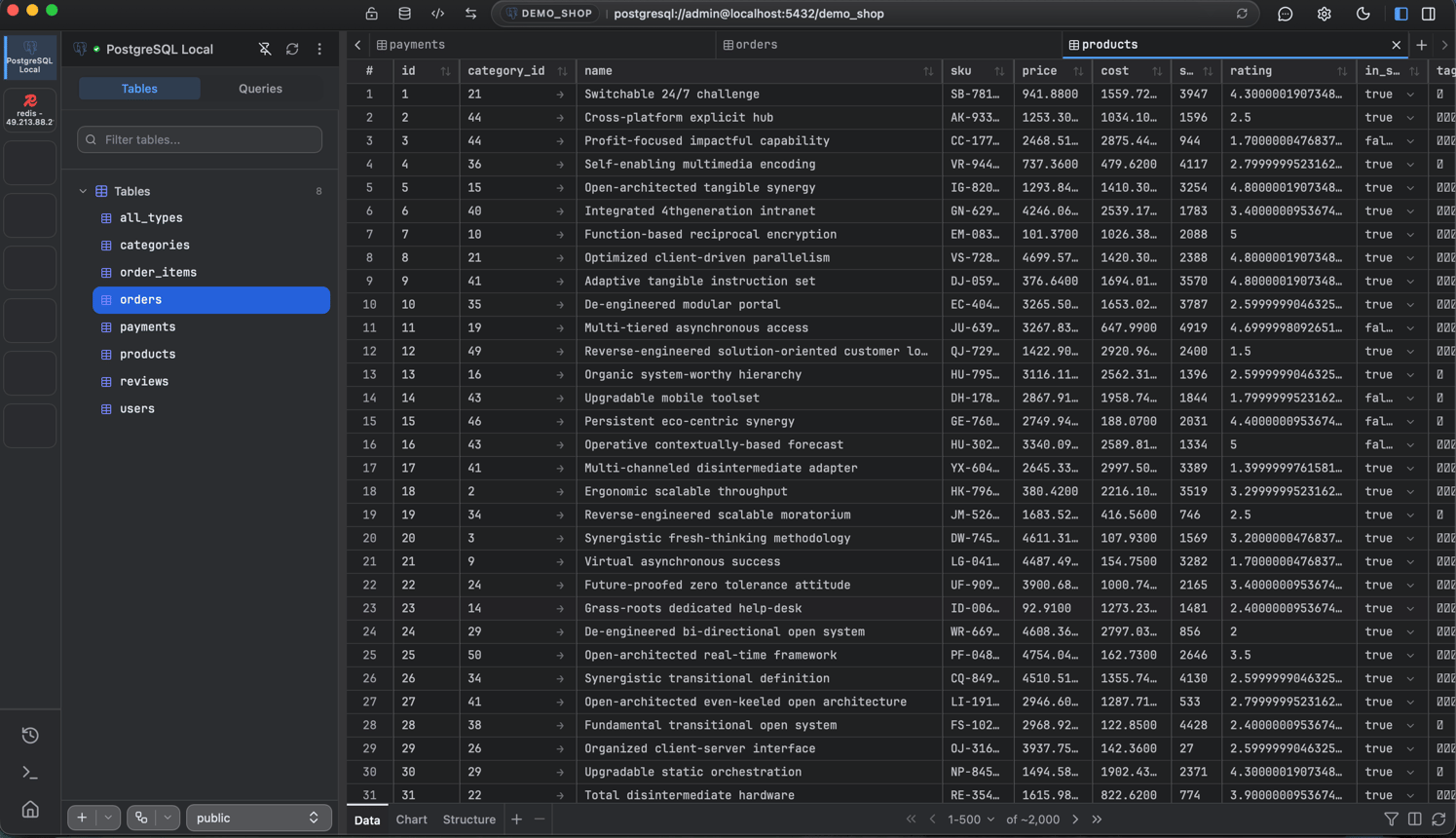 Even million-row tables scroll smoothly, so large data feels as fast as small.
Click **+** in the tab bar and choose **New Query**. Type a statement (autocomplete suggests tables and columns as you type):
```sql theme={null}
SELECT * FROM users WHERE created_at > '2024-01-01' LIMIT 100;
```
Press **Cmd/Ctrl + Enter** to run. Results appear in the grid below.
Even million-row tables scroll smoothly, so large data feels as fast as small.
Click **+** in the tab bar and choose **New Query**. Type a statement (autocomplete suggests tables and columns as you type):
```sql theme={null}
SELECT * FROM users WHERE created_at > '2024-01-01' LIMIT 100;
```
Press **Cmd/Ctrl + Enter** to run. Results appear in the grid below.
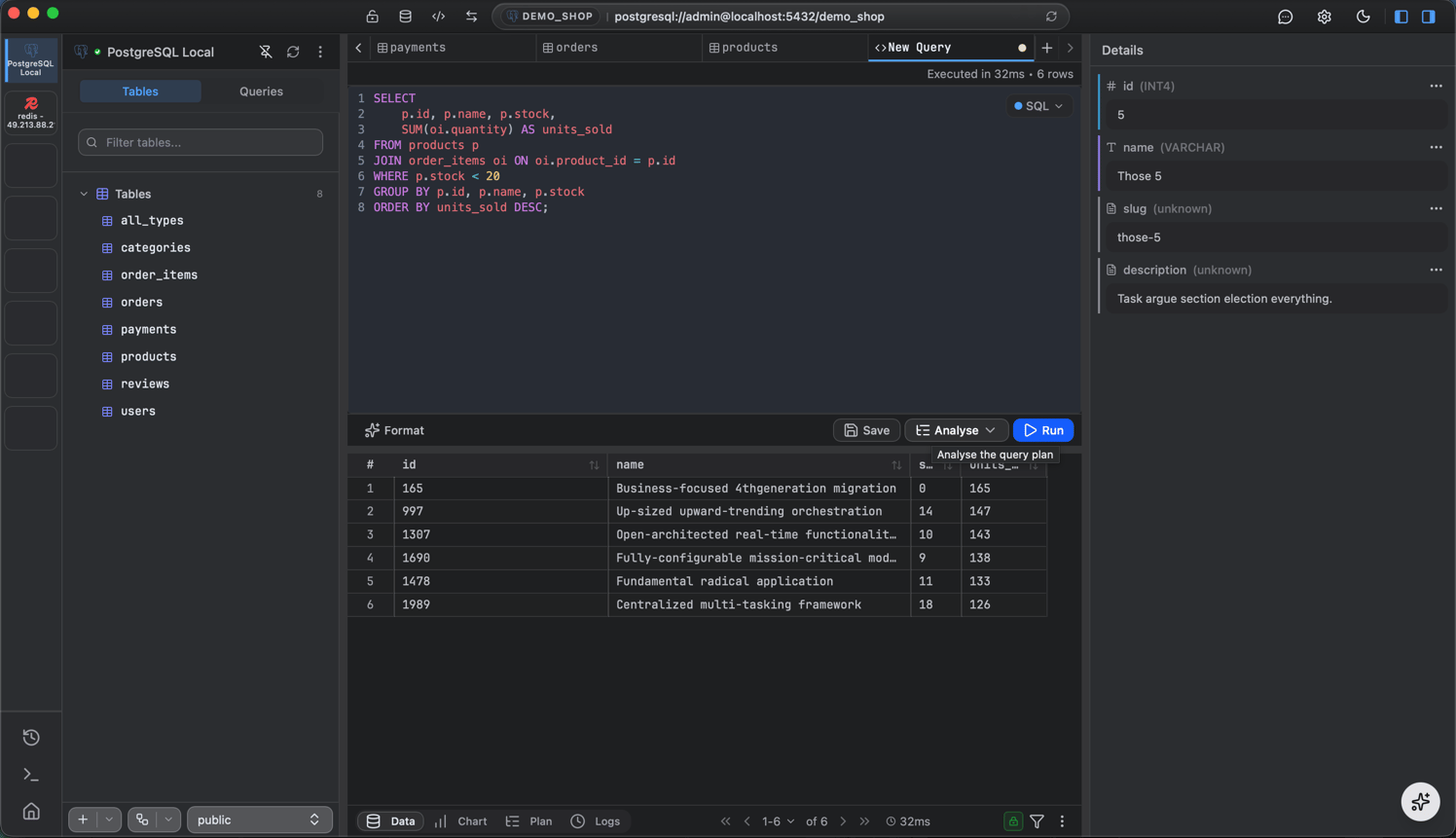 Switch the result from **Table** to **Chart** to see it as a bar, line, or pie chart.
Charts are a PRO feature.
## Where to next
Per-engine connection details.
Filter, sort, inspect, and edit rows.
Autocomplete, results, export, charts.
Move data in and out.
Switch the result from **Table** to **Chart** to see it as a bar, line, or pie chart.
Charts are a PRO feature.
## Where to next
Per-engine connection details.
Filter, sort, inspect, and edit rows.
Autocomplete, results, export, charts.
Move data in and out.