> ## Documentation Index
> Fetch the complete documentation index at: https://docs.flextable.dev/llms.txt
> Use this file to discover all available pages before exploring further.
# Backup and restore
> Back up a database with the matching engine tools, downloaded and verified for you, and restore it later.
Back up a whole database and restore it later, per connection. FlexTable drives the real engine tools under the hood, so a backup is a standard dump you can trust and reuse.
Backup and restore is a PRO feature.
 ## Tools, handled for you
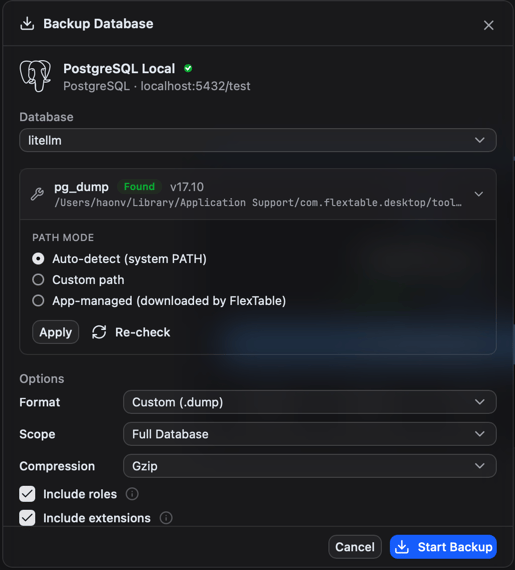
Backups use each engine's native client tools (`pg_dump` / `pg_restore`, `mysqldump`, `mongodump` / `mongorestore`, and the SQLite and Redis equivalents). FlexTable **downloads and verifies the version-matched tools automatically** and shows their status, so a backup taken here is compatible and you never hunt for a matching CLI.
**Version-matched.** FlexTable checks the tool version against your server and flags a mismatch before it can produce a bad dump.
## Back up
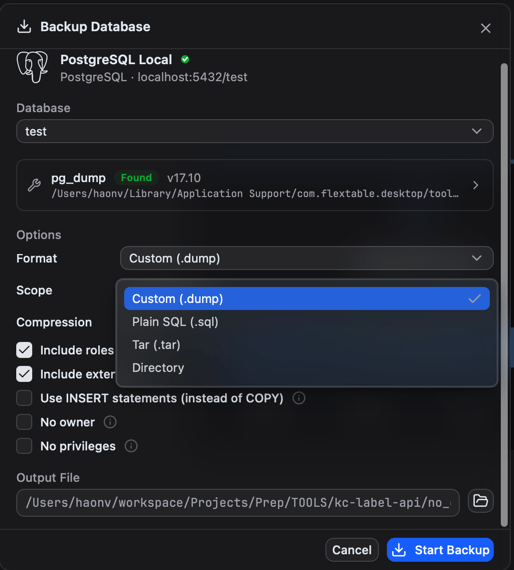
* **Format** - for example PostgreSQL custom or plain SQL, a MongoDB archive, a MySQL SQL dump, a SQLite file copy, or a Redis snapshot.
* **Scope** - the whole database, or selected tables/collections.
* **Compression** - optional, to shrink the output.
Progress is shown as it works.
## Tools, handled for you
Backups use each engine's native client tools (`pg_dump` / `pg_restore`, `mysqldump`, `mongodump` / `mongorestore`, and the SQLite and Redis equivalents). FlexTable **downloads and verifies the version-matched tools automatically** and shows their status, so a backup taken here is compatible and you never hunt for a matching CLI.
**Version-matched.** FlexTable checks the tool version against your server and flags a mismatch before it can produce a bad dump.
## Back up
* **Format** - for example PostgreSQL custom or plain SQL, a MongoDB archive, a MySQL SQL dump, a SQLite file copy, or a Redis snapshot.
* **Scope** - the whole database, or selected tables/collections.
* **Compression** - optional, to shrink the output.
Progress is shown as it works.
 ## Restore
FlexTable auto-detects the format.
## Restore
FlexTable auto-detects the format.
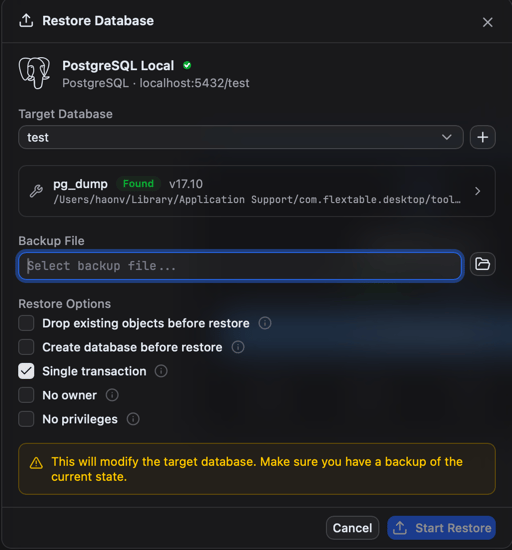 **Safe by default.** Review the target before you run a restore; restoring into an existing database can overwrite data.
For CSV/JSON/SQL/Excel of a single table, use Import and export instead.
**Safe by default.** Review the target before you run a restore; restoring into an existing database can overwrite data.
For CSV/JSON/SQL/Excel of a single table, use Import and export instead.